Salesforce Sandbox Types Explained: Where Should Your Developers (and AI) Work?
Introduction
Every Salesforce team has heard some version of this: "It worked in the sandbox." Usually it's said quietly, on a call, while something in production is very much not working.
The sandbox wasn't the problem. More often, it was the wrong sandbox for the job, or one that hadn't been refreshed in months. And now there's a new question on top of the old ones: when AI tools are writing Apex, flows and tests, which environment should they be working in?
This guide explains the four Salesforce sandbox types in plain English, when to use each one, and how to build a sandbox strategy that works for both your developers and your AI tools.
What is a Salesforce sandbox?
A Salesforce sandbox is a copy of your production org that you can safely break. It includes your org's configuration and code (its metadata), and depending on the type, some or all of your data. Developers build in it, testers test in it, and trainers train in it, all without touching the live system your users rely on.
The four types differ in three ways that matter day to day: how much data they hold, whether that data comes from production, and how often you can refresh them from production (Salesforce Ben).
The 4 Salesforce sandbox types at a glance
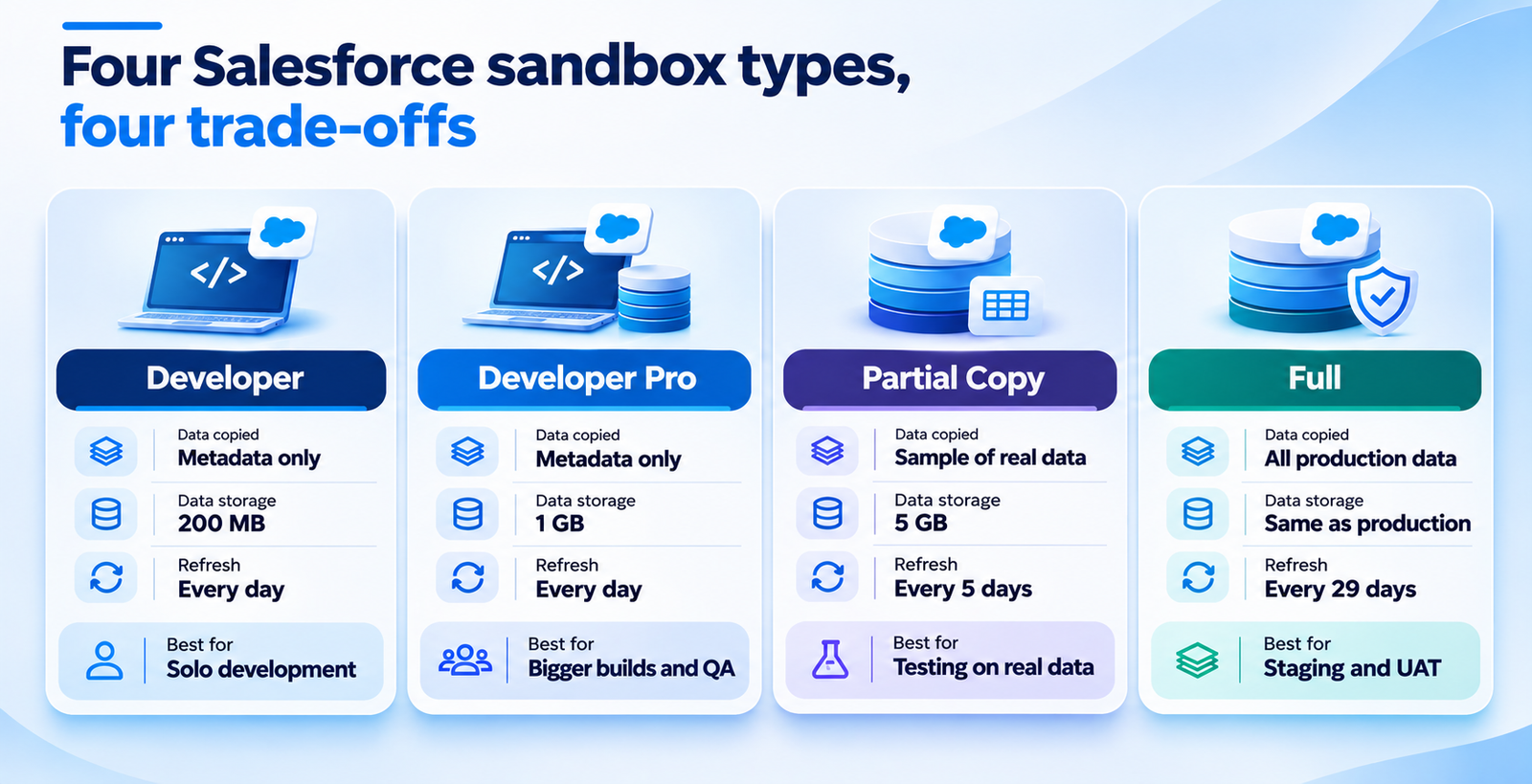
Here's how the four types compare, based on Salesforce's own sandbox guide.
Developer sandbox
The lightweight option. It copies your metadata but none of your data, and you can refresh it once a day. It's perfect for one developer building a feature or trying an idea, but you'll need to create your own test records.
Developer Pro sandbox
The same idea with more room: 1 GB of data storage instead of 200 MB, still refreshed daily. That extra space makes it useful for loading larger test datasets, integration testing and QA. It's included with Unlimited and Performance editions and can be bought separately for others.
Partial Copy sandbox
The middle ground. It copies all your metadata plus a sample of real production data, chosen with a sandbox template, which is required for this type. You can refresh it every five days, so it's a strong choice when you need realistic data without the weight of a full copy.
Full sandbox
A complete replica of production, data and all, with the same storage limits. It's the closest thing to the real org, which makes it ideal for final staging, performance testing and user acceptance testing. The trade-off is a 29-day refresh interval, so it falls out of date faster than any other type.
Which Salesforce sandbox should you use?
If you're not sure, start with one question: does this work need real production data? From there, the choice usually takes care of itself.
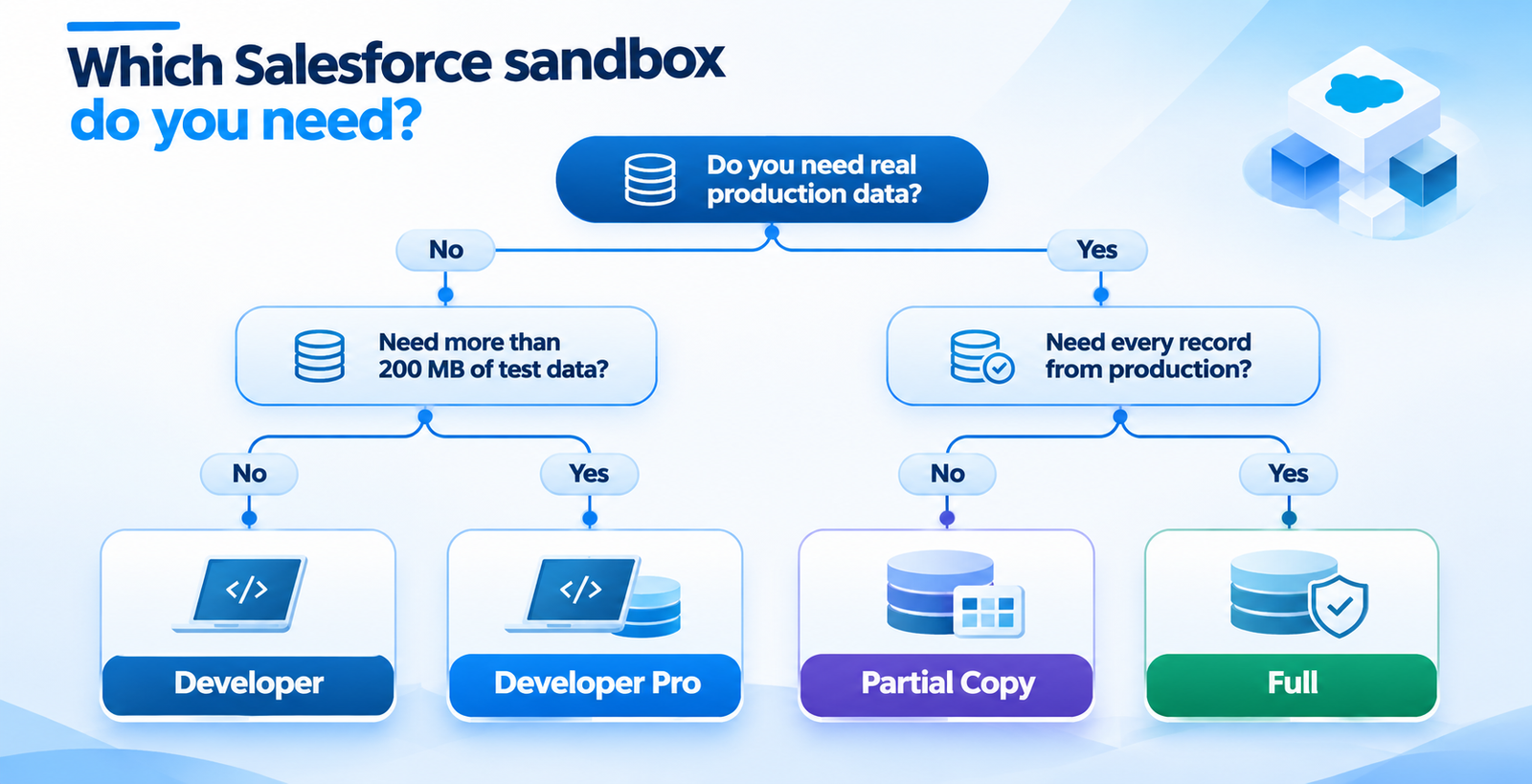
In practice, most mature teams use several types together. A common Salesforce sandbox strategy looks like this:
- Each developer gets their own Developer sandbox, so nobody overwrites anyone else's work.
- A shared Developer Pro sandbox brings features together for integration testing.
- A Partial Copy sandbox is where QA tests with realistic data.
- A Full sandbox is the final stop for staging, performance checks and user acceptance testing before production.
Your edition and budget decide how many of each you get, but the principle holds: the closer you get to production, the more realistic the environment should be.
Where should AI work in your Salesforce org?
AI coding tools can now write Apex, build flows and generate tests in minutes. That speed is great, as long as it happens in the right place. The same sandbox rules that protect you from a rushed human change protect you from a confident AI one.
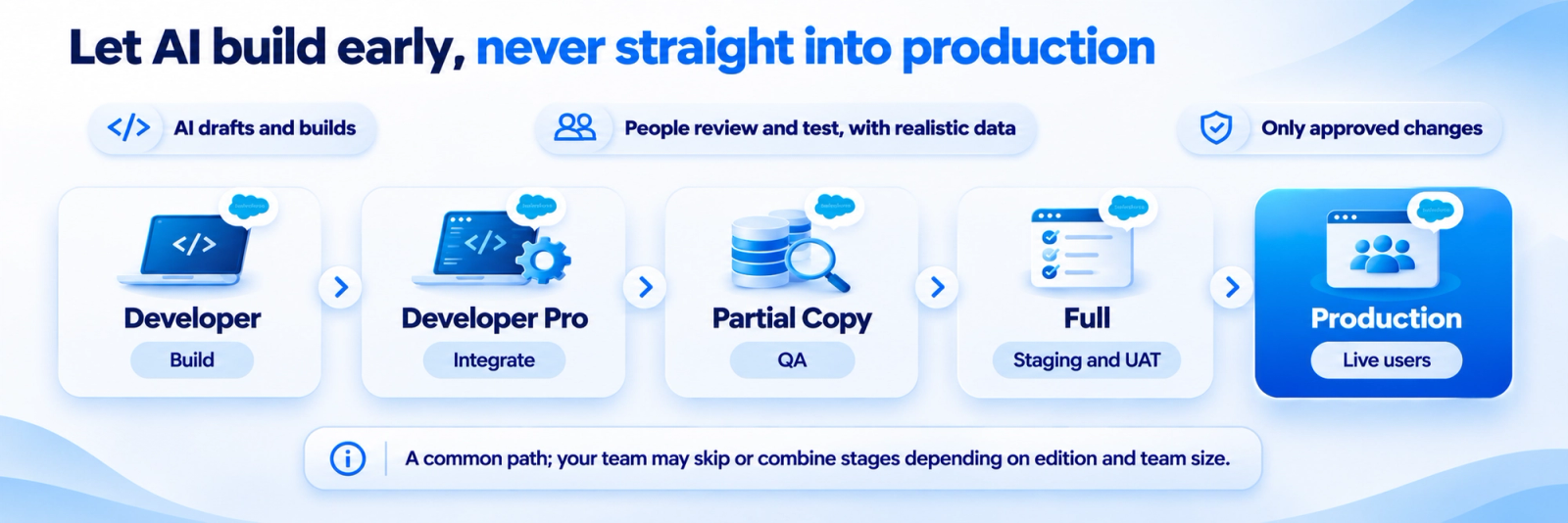
A few simple rules keep AI in Salesforce development safe:
- Build in a sandbox, always. AI-generated changes should start in a Developer or Developer Pro sandbox, never as a direct edit to production.
- Use the same pipeline as everyone else. AI changes should move through the same review, testing and deployment steps as human ones. We explain why in our post on running a Salesforce Center of Excellence.
- Test with realistic data before go-live. Code that works on five test records can fail on fifty thousand. That's what Partial Copy and Full sandboxes are for.
- Remember that AI only knows the org it can see. If an AI tool is connected to a sandbox, its answers describe that sandbox, which may not match production anymore. That brings us to sandbox drift.
Sandbox drift: why "it worked in the sandbox" happens
The moment a sandbox is created or refreshed, it starts drifting away from production. Someone adds a field in production. An admin tweaks a validation rule. A hotfix goes straight to live. A few weeks later, your sandbox is describing an org that no longer exists.
Drift hits hardest in Full sandboxes, which can only be refreshed every 29 days, and in any sandbox nobody remembers to refresh. It causes three familiar problems:
- Deployments fail because production has changes the sandbox never saw.
- Tests pass that shouldn't, because the sandbox data or configuration is out of date.
- AI gives confident but outdated answers, because it's reading a stale copy of your org.
Release previews make this even trickier
Three times a year, Salesforce upgrades preview sandboxes to the next release weeks before production. For Spring '27, the sandbox preview runs from January 10 to February 20, 2027. During that window your sandbox and production are on different releases, which is great for testing what's coming and risky if you forget. Winter '27 showed this with its new Apex heap limits, which we covered in Winter '27 Is Rolling Out. What Will It Break in Your Org?
The fix is simple to describe and hard to do by hand: refresh on a schedule, and always check what's different between your sandbox and production before you deploy.
How nCoder.ai fits into your sandbox strategy
nCoder.ai doesn't create or refresh sandboxes; Salesforce does that. What it does is make every environment you already have easier to understand and safer to change, for your team and for AI.
- Connect every environment. nCoder connects through Salesforce OAuth, so it creates no new credentials. You can connect production, sandboxes and dev orgs, as many as you need, and switch between them.
- See each org clearly. For every connected org, nCoder builds Org 360, a knowledge graph of objects, fields, Apex, flows, LWC and permissions, with their dependencies and blast radius.
- Keep the picture current. Metadata refreshes, re-indexing and security scans can run on demand or on a schedule, so AI answers reflect the org as it is now, not as it was at the last refresh.
- Get ready for release previews. Upload Salesforce release notes, and the Salesforce Releases feature maps each change against your org as Breaking, Deprecated, Review or Improvement, which is exactly the list you want during a sandbox preview window.
- Test like a real user. Describe tests in plain English and nCoder runs them in a live browser, including as another user, so permission problems show up in the sandbox instead of in production.
- Deploy through your process. Changes deploy to Salesforce or GitHub, with pre-deployment impact analysis to catch breaking changes before they ship.
The result: AI works where it should (in your sandboxes), with context it can trust (your real, current metadata), and changes reach production the same careful way as everything else. Learn more on our features page.
FAQs
What are the 4 Salesforce sandbox types? Developer, Developer Pro, Partial Copy and Full. They differ in how much data they hold, whether that data comes from production, and how often they can be refreshed.
What is the refresh interval for each sandbox type? Developer and Developer Pro sandboxes can be refreshed once a day, Partial Copy every 5 days, and Full every 29 days.
Which sandbox should I use for user acceptance testing? A Full sandbox, because it's the closest copy of production, data included. If you don't have one, a Partial Copy sandbox with a good sandbox template is the next best option.
Is it safe to let AI tools work in a Salesforce sandbox? It's the right place for them, as long as AI changes go through the same review and testing as human ones before reaching production, and the AI is working from up-to-date metadata.
Conclusion
"It worked in the sandbox" usually means one of two things: the wrong sandbox was used, or the right one had quietly drifted away from production. Knowing the four Salesforce sandbox types, and what each is really for, fixes the first problem. Refreshing on a schedule and checking your org before every deployment fixes the second. As AI takes on more of the building, those habits matter even more, because AI will happily work at speed in whatever environment you give it. Give it the right sandbox and an accurate picture of your org, and "it worked in the sandbox" can finally mean "it'll work in production too."
Give your sandboxes (and your AI) the full picture
nCoder.ai connects to your production and sandbox orgs, maps every dependency, and keeps that picture current, so your team and your AI always know what they're changing.
Request a demo and ask about trying nCoder.ai on one of your sandboxes.
Sources
- What Is a Salesforce Sandbox? – Salesforce
- Salesforce Sandbox Guide – Salesforce Ben
- Target release version and preview dates – Salesforce Developers